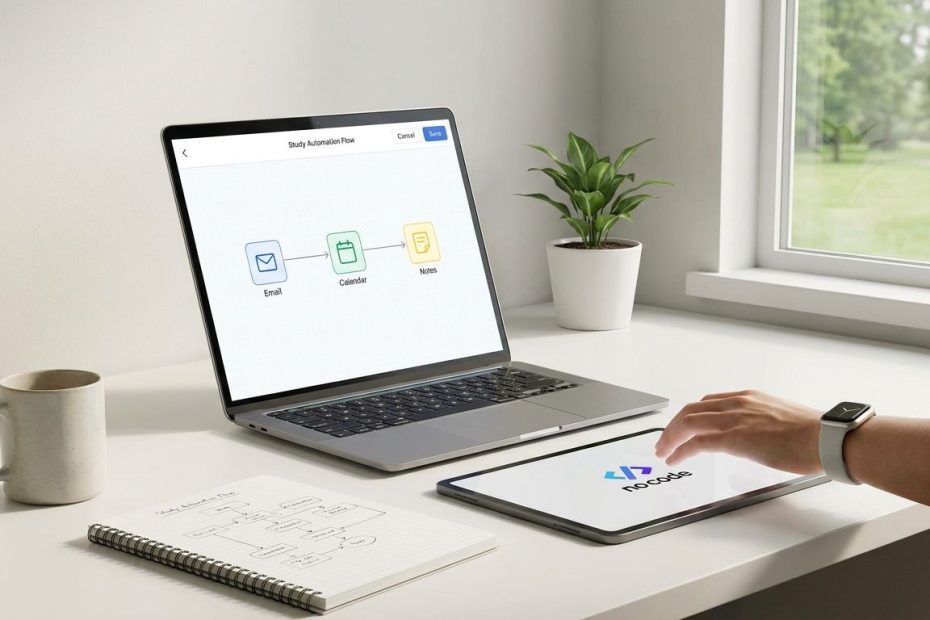
Basic automation for students starts with a simple idea: let a tool handle repeat tasks after you define the rule. You don’t need a technical major, advanced math, or programming experience to begin.
If you’re copying email details into a spreadsheet, renaming files, sorting attachments, scheduling reminders, or managing campus club updates, automation can reduce the small tasks that eat your study time. This article shows you how to understand automation, choose beginner-friendly tools, build useful student workflows, and connect the skill to your future career without turning it into a coding project.
Can You Learn Automation Without Being a Programmer?
Yes, you can learn automation without being a programmer by using visual no-code tools that connect apps through simple rules. Most beginner automations use a “when this happens, do that” pattern instead of written code.
That pattern is easier than it sounds. A trigger starts the workflow, then one or more actions happen after it. A trigger could be a new form response, a new email attachment, a new calendar event, or a new file added to cloud storage. An action could save that file, send a reminder, update a spreadsheet, or notify a group chat.
This is why automation is no longer only for computer science students. A business student can move survey results into a spreadsheet, an arts student can schedule portfolio updates, and a humanities student can organize research notes across folders. You’re not building software from scratch. You’re designing small workflows that make your existing apps work together.
What Does Basic Automation for Students Actually Mean?
Basic automation for students means using tools to handle repetitive academic, personal, or campus tasks with minimal manual work. It usually starts with triggers, actions, filters, and simple checks.
The trigger is the event that begins the automation. The action is what the tool does after the trigger happens. A filter adds a condition, so the automation runs only when the rule matches what you want. A simple check helps you confirm that the workflow worked before you rely on it during a busy week.
A useful student automation stays small. You don’t need to automate your whole study routine on day one. Start with one task you repeat every week, then make that task faster, cleaner, or harder to forget. Good early targets include saving attachments, logging form responses, creating calendar reminders, moving files into folders, and sending routine updates.
What No-Code Tools Should a Non-Technical Student Start With?
A non-technical student should start with one free no-code platform that already connects the apps they use every day. Good beginner options include Zapier, Make, IFTTT, Microsoft Power Automate, and Airtable Automations.
Don’t pick a tool because it has the most features. Pick the tool that fits your current setup. If your school uses Microsoft 365, Microsoft Power Automate can feel natural. If you live in Google Drive, Gmail, forms, and spreadsheets, Zapier, Make, or Google Apps Script tutorials can help you connect common student tasks.
Make one account, follow one tutorial, and build one useful workflow before comparing every option. Tool-hopping wastes time. Once you understand triggers and actions in one platform, the same logic transfers to others. That’s the real skill: knowing how to turn a repeat task into a clear rule.
Beginner No-Code Automation Tools for Students
|
Tool |
Best Starting Use |
Why It Works for Beginners
|
|
Zapier |
Connecting common apps |
Simple trigger-and-action builder with beginner lessons |
|
Make |
Visual multi-step workflows |
Drag-and-drop workflow mapping for seeing the whole process |
|
IFTTT |
Personal productivity automations |
Good for simple app connections and reminders |
|
Microsoft Power Automate |
Microsoft 365 school accounts |
Works well with Outlook, OneDrive, Teams, and Excel |
|
Airtable Automations |
Project tracking and databases |
Useful for clubs, research logs, content calendars, and task boards |
What Are Simple Automation Projects Students Can Build First?
The best first automation project is a task you already understand and repeat often. Choose something low-risk, easy to test, and useful enough that you’ll notice the saved time.
Start with email attachments. You can create a workflow that saves attachments from a certain sender into a folder, then tags the file by course or project. This helps when professors, classmates, student groups, or internship contacts send documents you need to keep. It reduces the chance that a useful file sits forgotten in your inbox.
A second project is form-to-spreadsheet logging. If you manage sign-ups for a club, research interest form, peer tutoring group, event list, or group project, automation can collect responses in one place. A third project is calendar creation from deadlines. When a new row gets added to a spreadsheet, the automation can create a reminder so you don’t manually enter dates one at a time.
Where Can You Learn Automation for Free?
You can learn automation for free through official learning centers, university-backed courses, tool academies, and beginner communities. The strongest path is to pair one short lesson with one real task from your own student life.
Zapier’s learning materials explain automation basics in plain language. Microsoft Learn offers Power Automate modules with hands-on practice, which is useful if your school account already uses Microsoft tools. Make Academy provides free lessons for visual automation, and Google Apps Script documentation helps when you’re ready to automate Google Workspace tasks with light scripting.
If you prefer a course format, no-code automation courses from Coursera and edX can give you structure. Communities can help when a workflow breaks or a tool setting is confusing. Use community answers for troubleshooting, then confirm core steps through official documentation when you’re building something you’ll rely on.
How Do You Choose Your First Automation Project by Major?
Choose your first project by looking at the repeated tasks inside your field of study. A useful automation should support your coursework, campus role, internship search, research, or portfolio process.
If you’re a business student, start with form responses, spreadsheets, contact lists, or meeting reminders. If you’re studying arts or design, automate file organization, portfolio update reminders, or content calendar tasks. If you’re in humanities, focus on research folders, reading lists, citation tracking reminders, or newsletter drafts for a campus publication.
Keep the first project narrow. “Automate my study life” is too broad. “Save email attachments from my research group into the right folder” is clear and testable. The best first win gives you proof that automation works, then you can build a second workflow with more confidence.
What If You Don’t Feel Technical Enough?
You don’t need to feel technical before you begin. You need to describe a task clearly, break it into steps, and test whether the tool follows your rule.
Think of automation as a cousin of spreadsheets and presentations. At first, formulas, slide layouts, and file sharing can feel unfamiliar, then they become normal academic tools. Automation follows the same learning curve. You build fluency by making small useful things, not by memorizing technical vocabulary.
When something breaks, read the error message and check the last step that ran correctly. Most beginner student workflows fail for simple reasons: a missing permission, a renamed folder, a changed spreadsheet column, or an app connection that needs to be refreshed. If you document what the workflow does in one or two plain sentences, rebuilding it is usually faster than guessing.
Is Robotic Process Automation the Same as No-Code Automation?
Robotic Process Automation (RPA) and no-code automation are related, but they’re not the same. RPA often mimics human actions across business systems, and no-code automation usually connects apps through predefined triggers and actions.
For a student, no-code automation is usually the better starting point. It’s easier to set up, easier to test, and better suited for personal productivity tasks. You can connect email, calendars, forms, spreadsheets, cloud storage, project boards, and messaging tools without learning how enterprise systems work.
RPA becomes more relevant when you’re dealing with repeated tasks inside older systems that don’t connect easily through standard app integrations. That can matter in operations, finance, administration, and large organizations. At the beginner level, focus on no-code workflows first, then learn RPA concepts later if your career path calls for it.
How Long Does It Take to Learn Basic Automation?
You can understand the basics in a weekend, and you can build a useful first workflow in under an hour if the task is simple. Real confidence comes from making several small automations and fixing small mistakes along the way.
A practical learning plan is short and direct. Spend thirty minutes learning triggers and actions, thirty minutes watching a tool-specific beginner lesson, and one hour building a workflow from your own routine. Then spend another short session testing edge cases, renaming steps, and writing down how it works.
Don’t wait until you have a perfect project. Pick one repeat task and make it run once. After that, improve the wording, add a filter, or add a notification. Small upgrades teach you more than passive watching.
How Can Automation Skills Help Your Career?
Automation skills help your career by showing that you can reduce repetitive work, organize information, and improve team processes. Employers value students who can spot waste and build simple systems, even when the job is not technical.
Industry reports point to strong demand for low-code, no-code, and automation literacy across many roles. Gartner has forecast broad enterprise adoption of low-code and no-code technologies. LinkedIn has listed automation among in-demand professional skills, and McKinsey has reported employer interest in candidates who can automate routine tasks regardless of major.
You can show this skill on a resume without overselling it. Use plain results: “built a workflow to collect event sign-ups into a spreadsheet,” “automated club reminder emails,” or “created a file organization system for research materials.” Hiring teams understand practical process improvements. The strongest proof is a clear before-and-after description of the task you improved.
How Can a Non-Technical Student Start Learning Automation?
- Learn triggers and actions.
- Pick one free no-code tool.
- Automate one real task.
- Test, rename, and document it.
- Repeat with a harder task.
Build One Small Workflow Before You Learn Another Tool
The fastest way to learn basic automation for students is to stop treating it like a separate technical subject and start treating it like a study skill. Pick one repeated task, choose one no-code tool, build one small workflow, and test it until you trust it. Your major doesn’t limit your ability to automate emails, forms, folders, calendars, spreadsheets, and reminders. Once you’ve built your first working automation, you’ll start seeing repeat tasks differently, and that shift is where the skill becomes useful.
References
- Zapier Learning Center – Automation for Beginners
- Coursera – No-Code Automation for Everyone
- edX – Low-Code and No-Code Automation
- Microsoft Learn – Power Automate Beginner Path
- Google Apps Script Documentation
- Make Academy
- University of Michigan – Automating Your Daily Work with Artificial Intelligence and No-Code
- Reddit r/automation – Beginner’s Guide

Mark R Graham is a private equity executive and co-founder of Drake, Goodwin & Graham, with over 20 years of experience in alternative assets and M&A. A former Vice President at Morgan Stanley and practicing attorney, he now focuses on strategic investments and educational philanthropy.